Posts

How to change your computer password...
Image
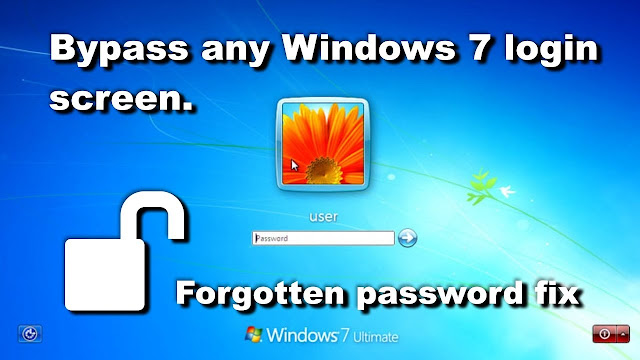
How  to unlock your computer Or How to reset windows 7 password. (it will work for all operating system..but i'm going to show you windows 7 method.) If you forgot your computer password than it will help you to unlock your computer. Method : - -           Restart your computer and suddenly turn it off by using power button -           Press and hold few seconds to turn it off -           Do that same thing again and again until your computer don’t shows “Startup Repair” options. -           3 rd or 4 th try you will get start up repair option -            -           Click on launch startup repair option -           Wait for this process -    ...

Most Useful Websites.

Image
Here it some most useful websites to help you in work. This all website free , simple and easy to use. 1. AlternativeTo Link : -    https://alternativeto.net/ Interface About : Similar or alternative website and app finder                That website can fine any alternative of website, game or social media.               If you want find any similar of your app or website than you can find how much app -                                    / software/website available in online market are similar to your thing                For an example,..  if you want to find alternative of Facebook Massanger ..                Than you ‘ll got many chatting apps or software similar like, Signal , Tel...

Repair SD card

Image
 If your SD card (Memory card) corrupted then here is solution.. If your SD card corrupted or showing wrong size then you can go for this solution. You need SD card Reader to fix problem. Before this your should know Why your SD card corrupted ?, Ans is ., If you change your SD card one device to another device again and again then it can damage your SD card. Because every device have a different file format for storage. Whenever you change device your SD card automatically save some temp files from your previews device. Other device can't read that format and it can damage your SD card. By using this some easy step you can fix your SD card problem. plug in your SD card into your computer or laptop threw SD card reader. Open command prompt (CMD) and type " diskpart ". After this type second command which is " list disk " , by this you will see available storage devices in your computer. we want to fix SD card. for select SD card type " Select Disk 1 " ...

5 amazing smart phones in diwali sales...

Image
 Value for money 5G smart phones. here is some top highest selling smartphone at amazon on Diwali smart phone sale. smart phone for sale. 1. Real me x7 Max  ( 8 & 128GB ) Rs. 26,999 " Available on Amazon Diwali Offer " Buy It From Here  : -  https://www.amazon.in/realme-x7max Specifications : - 6.43'' FHD+ 120Hz Amoled display MediaTek Dimensity 1200 Processor Back Camera ( Triple camera ) 64MP + 8MP + 2MP  Front Camera 16 MP 4500 mAh battrey  50w Charger

5 most useful apps For Students

Image
 Here is some most useful app for students on google play store. 1. Kodak Film Scanner Download link :-  https://play.google.com/store/apps/details?id=com.pictoscanner.android.kodak&hl=en_IN&gl=US About :-  The app can be used for black and white negatives, color negatives and positive slides. After recording, the app contains an editor for cropping, contrast adjustment and color adjustment. Finally, the image is stored in your photo library and can be shared with family and friends. Basically this app can turn negative image to colour image by scanning. just put light white background behind the negative image or film roll and scan it thew this app. Here you can see colour image preview. 2. Remini  Download link :-  https://play.google.com/store/apps/details?id=com.bigwinepot.nwdn.international&hl=en_IN&gl=US About :-   This app can turn your old black & white image to colour image.You can enhance you blur image by using it.  Here ...

How To Make Password Protected Hidden Folder Faster Than Maggi.

Image
 You can make password protected folder for your data faster than 2 min wali Maggi  by reading this post... Go to your computer , Open Notepad. Copy this text and Paste on Notepad. :-->                                                                                                                                                                       

HOW TO INSTALL WINDOWS

Image
 Here i'm going to show you how to install windows 7 in your computer , here is 3 steps by following them you can easily install windows in your computer or laptop. 1) Download iso file  2) Bootable pendrive 3) Installing process    Notice : Create back up of your data on cloud storage or other storage devices.  1. Download iso file  first you have to go this website and download window's iso file , i have widows 7 iso file , you can download it from here... https://appsforpcfree.net/download-windows-7-iso-from-microsoft/ method is same to install any windows in your computer .  2. Bootable pendrive  Now you need a pen drive and format it. (Make sure you have back up). Install that software to make bootable pendrive. download it from here :  https://www.poweriso.com/download.php install this software. plug in pendrive in your computer. open that software. here it's looks... open tools option and click on create bootable pendrive. Select that ...

50 Shortcut keys of MS Office Excel.

Image
     Here is some shortcut keys of MS Office Excel. It will make your work easy and fast . 1. Ctrl + N :   Open new work book . 2. Ctrl + A :    Select entire workbook. 3. Ctrl + B :   Turn highlighted cells Bold. 4. Ctrl + C :   Copy cell. 5. Ctrl + V :   Paste value in cell. 6. Ctrl + U :   Turn highlighted cells Underline. 7. Ctrl + I :   Turn highlighted cells Italic. 8. Ctrl + D :   To fill upper cell value in current cell. 9. Ctrl + S :   Save workbook. 10. Ctrl + O :   Open saved workbook. 11. Ctrl + K :   To insert hiperlink in cell. 12. Ctrl + P :   Print workbook. 13. Ctrl + Space :   Select entire column. 14. Ctrl + W :   Close workbook. 15. Ctrl + ; :   Enter current date. 16. Ctrl + Shift + :  :   Enter current time.   17. Ctrl + Shift + $ :   To apply currency formating in cell or selected cells. 18. Ctrl + Shift + @ :   Time Formating. 19. Ctrl + Shift +...

How to project your phone in your Computer

Image
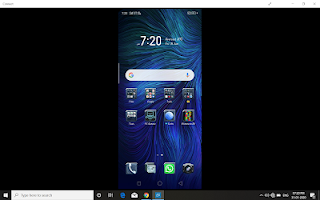
How to project your phone in your Computer (Windows 10) There is two very easy steps for  project your phone in your Computer . by folllowing these are steps your can easily project your phone in your computer. Step 1: press start button in your key-board or click on start or windows icon in your desktop screen . and find "Connect" option in your start menu or search "Connect" click on it. then you will something like this.👇👇 If you didn't see that then you have to settings ,  and click System option. and find "Project to this pc" option.  and after that select "Available everywhere" option from first dropdown box then go to "Connect" and disable require pin for paring. then you have to "Connect" there you can see your computer is ready to connect. Step 2:  Turn on your phone's wi-fi and go to settings in your phone. and tap on more networks or more.. option . then you will see w...

How to control your computer with your smart phone

Image
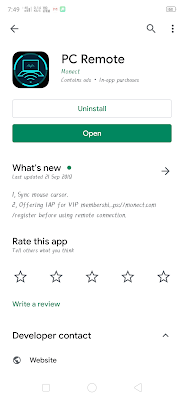
How to control your computer with your smart phone ? Here is some steps after doing that you can you can control your computer with your smart phones ? Step 1 : First you have to make sure your computer  and your smartphone both are devices are connected on same network. Step 2:  Open Playstore in your smart phone and download Monect pc remote or clike here..👉👉 https://play.google.com/store/apps... and another one download in your computer from here..👉👉 https://www.monect.com/   open that link and click on download button.. Step 3: Install that software in your computer and also open that app in your smart phone you'll see connect option in your smartphone at bottom like this.. Step  4: then you will your computer name, if you didn't see then you'll have to click on connect to pc  and click on "Generate QR code" in your computer. Scan that OR code from which one  is shows on your computer screen. After...

Oppo Real me 3

Image
Oppo Real me 3 at only 8999rs. The best smart phone at lowest price and comes with very good specifications ... Oppe realme 3 was launched on 4th march 2019 in India.  It has a 6.3-inch HD+ display with a teardrop notch. The phone is powered by the MediaTek Helio P70 SoC along with ARM Mali-G72 MP4 GPU. It has two storage configurations: 3GB RAM with 32GB of storage and 4GB RAM with 64GB storage.   This one comes with 3gb RAM and 32gb Internal storage.( it's  also available in 4/64gb)  It's comes two colour options- Radiant blue and Dynamic black. For Buying    https://amzn.to/2Y50X0O Specifications.. 13MP+2MP dual rear camera with f1.8 + f2.4, photo editing, sensor size/pixel data: 1.12 micrometer + 1.75 micrometer, consecutive capture mode: 20 in row, bokeh mode, video: 720p, 1080p, SAR auto, sensor type: CMOS | 13MP front camera 15.7988 centimeters (6.22-inch) HD+ multi-touch capacitive touchscreen with 1520 x 720 pixels re...